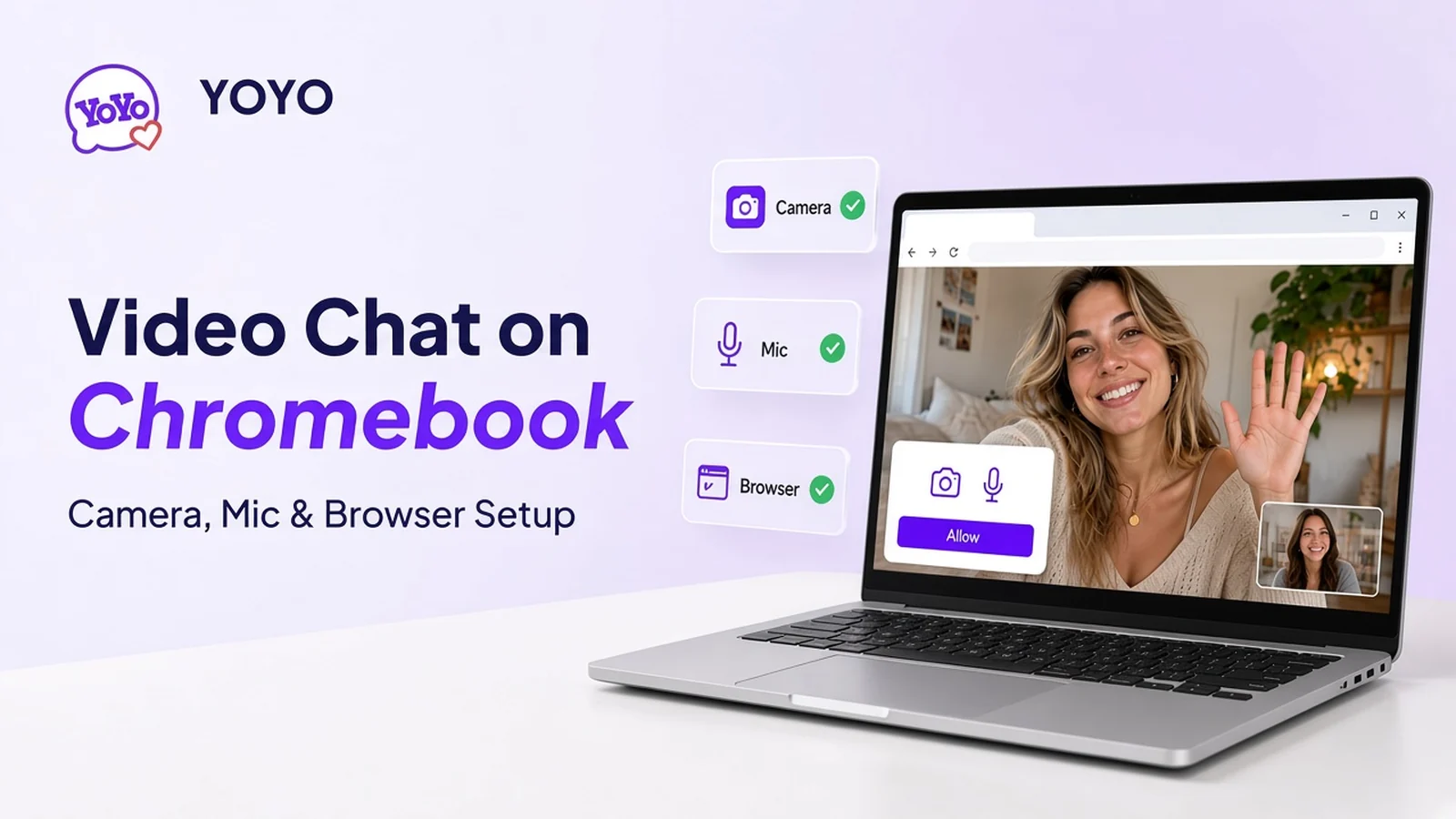
A Chromebook is a convenient device for browser-based video conversations. You already have Chrome, most models have a camera and microphone, and you can usually join a compatible website without installing a traditional desktop application. But when the camera shows black or the microphone stays silent, the problem can be confusing: ChromeOS and the Chrome browser each have their own controls.
The fastest fix comes from checking the layers in the right order instead of restarting everything at random.
Quick answer: Open the intended video-chat website in Chrome, check the Chromebook's physical camera switch if present, enable Camera and Microphone access under ChromeOS privacy controls, and then grant permission to the specific website in Chrome. Select the intended input device, close conflicting tabs and run a short test. If the device is managed by a school or workplace, an administrator may control these settings.
The two permission layers you need to understand
On a Chromebook, permission can fail at the device level even when the browser appears to be allowed. Google documents system-level privacy controls under Settings → Privacy and security → Privacy controls. Chrome separately manages permission for each website in Settings → Privacy and security → Site settings.
Think of the process as two doors. The system must allow the camera or microphone to be used, and the site must also be allowed to use it. If either door is closed, the call may not work.
| Symptom | First place to check | Likely next test |
|---|---|---|
| Camera is black on every site | Physical shutter and ChromeOS Camera access | Test Chromebook Camera app |
| Camera works in an app, not on one website | Chrome site camera permission | Reload the allowed page |
| You can hear others, they cannot hear you | ChromeOS Microphone access and mute | Select correct input device |
| Wrong external webcam appears | Chrome's default camera selector | Disconnect/reconnect external camera |
| Camera works, but video freezes | Wi-Fi, device workload and background apps | Try a shorter test on stable network |
| Permissions cannot be changed | Managed device policy | Ask the device administrator |
Step 1: Check the camera shutter and device controls
Some Chromebooks have a physical camera shutter or switch. If yours does, make sure it is open or enabled. It is easy to overlook because the device may continue reporting that a camera exists while the image remains dark.
Next, select the time at the bottom-right of the screen and open Settings. Go to Privacy and security → Privacy controls. Confirm that Camera access and Microphone access are enabled for the activity you intend to perform. Google explains that turning Camera access off at this level blocks apps and browser websites regardless of their individual permissions.
If you are using a school or company Chromebook, these settings may be restricted. Do not try to bypass a managed policy; use a permitted account or device instead.
Step 2: Allow the right website in Chrome
Open Chrome and navigate to the video-chat platform from its official address. When the site asks for camera or microphone access, read the domain and choose an appropriate permission. The wording of the prompt may allow access while visiting or for the current session, depending on the browser version.
If you denied access earlier, you can correct it in Chrome's settings:
- Open Chrome Settings.
- Go to Privacy and security → Site settings.
- Choose Camera or Microphone.
- Find the intended website under allowed or blocked sites.
- Change the permission for that website, then refresh the page.
Only grant access to a service you trust. Avoid turning on broad permission rules just to get past an unfamiliar prompt. Chrome's official help describes both site-specific permission changes and default device selection.
Step 3: Select the actual camera and microphone
Many Chromebooks have one built-in webcam and one internal microphone, but users may connect a headset, USB camera or docking station. Chrome can choose a different input from the one you expect.
Under Chrome's Camera settings, review the default camera. Under Microphone, review the selected recording device. If you use Bluetooth headphones, check which device acts as the microphone. A headset can be connected for audio output while Chrome continues listening to the internal mic—or the other way around.
Say a normal sentence in a permitted test call rather than only tapping the microphone. You want to know whether the selected input actually captures speech at a clear level. If you hear feedback, use headphones, lower the speakers and make sure you did not open the same call in two tabs.
Step 4: Test with the Chromebook Camera app
If video is black on every website, open the built-in Camera app. If the Camera app also cannot display a picture, the problem is more likely to involve a shutter, device setting or hardware. If the Camera app works but one site fails, focus on that site's permissions and browser session.
You can do the same kind of isolation with the microphone: try a permitted audio recording or system test first, then return to the website. This avoids changing Wi-Fi settings for what is really a device permission issue.
Keep testing simple and local. Do not upload recordings of yourself to an unknown diagnostic website just because a search result says “test your microphone now.”
Step 5: Try a clean browser session
Close tabs that may already be using the camera or microphone, such as another live call or recording tool. Reload the intended site after changing permissions. If the camera still fails, fully close and reopen Chrome, then try again. Google recommends verifying the site permission, selected device, restarting the call/browser and rebooting if necessary.
Browser extensions can sometimes interfere with a page. Do not disable security protections indiscriminately. If you suspect a conflict, test in a clean approved browser profile or with extensions you control temporarily disabled, then restore your normal configuration.
If the Chromebook is low on memory, close unnecessary apps and tabs before a video call. Keeping a dozen streaming pages open while trying to run live video makes troubleshooting harder because the same symptoms can have several causes.
Step 6: Separate a network problem from a camera problem
If your face appears normally but freezes every few seconds, that is a different failure from a completely black camera. Network delay can make frames late or audio choppy; it does not normally explain why a system-level camera permission is off.
Try moving closer to the Wi-Fi router or using a stable network. Pause large downloads and avoid switching networks during the call. If multiple people on the same network are watching high-resolution video, test at a quieter time. Rejoin after the network settles rather than repeatedly changing unrelated privacy settings.
Our guide to video chat freezing and dropped calls covers a fuller diagnosis of lag versus call disconnections.
Step 7: Choose a video-chat service that works with your expectations
A Chromebook can open browser-based services, but not every social video app offers identical features in ChromeOS and on iPhone or Android. Some services require registration, while others emphasize immediate matching. Do not infer that a phone app's filters, payments or friend system are automatically replicated in the Web version.
You can explore the YOYO website and its Web guide to understand the current browser entry. YOYO's iPhone version history describes friend-based video communication; treat the app and the browser flow as separate products until the same functions are verified on both.
For general browser options, our video chat sites comparison can help you think about the experience you prefer.
Troubleshooting flow: black camera, no audio, or blocked permission?
Use this order the next time a call fails:
Black video: Check shutter → ChromeOS Camera access → Chrome site Camera permission → selected camera → Camera app test. Silent microphone: Check mute switch → ChromeOS Microphone access → Chrome site Microphone permission → chosen input → audio test. Frozen video: Check whether the camera works locally → close heavy apps → stabilize Wi-Fi → rejoin once. Settings grayed out: Check whether the Chromebook is managed rather than attempting to override the policy.
Writing down where the first failure occurs makes support faster. “The Camera app works but the browser site says blocked” is more useful than “Video chat doesn't work.”
Privacy choices on a shared Chromebook
A Chromebook used at school, work or home with multiple accounts deserves extra attention. Do not leave the browser signed in after a call if someone else uses the device. Check whether a website retains permission and revoke access if you no longer need it. Close private documents and notifications before turning on screen sharing.
Remember that the person on the other end may be able to capture screenshots or recordings. A working camera is not an invitation to display sensitive paperwork, home-address clues or other personal details. See our video chat privacy checklist.
Frequently asked questions
Can I video chat on a Chromebook without installing an app?
Yes, with a compatible browser-based service. Availability and sign-in rules depend on the service, and not every mobile feature necessarily exists in the browser.
Why does Chrome say my Chromebook camera is blocked?
The site may lack permission, ChromeOS Camera access may be off, or the device may have a closed physical switch. Check those layers in order.
Why can others hear me but not see me?
The microphone may be allowed while the camera is blocked, covered or assigned incorrectly. Review camera permissions and the selected device separately.
Can a school Chromebook block video chat?
Yes. Administrators can restrict site access and permissions on managed devices. Ask the administrator or use an authorized device rather than trying to bypass the restriction.
What if the camera works in the Camera app but not on the website?
That points you toward Chrome site permissions, the current tab, the selected camera or a browser-specific conflict. Refresh after changing permissions.
Does YOYO work exactly the same on Chromebook and iPhone?
Do not assume that. Review the current YOYO Web entry independently from the App Store listing and test the specific function you intend to use.
Ready for a real conversation
On a Chromebook, most setup confusion disappears once you separate the physical camera, ChromeOS privacy controls, Chrome's site permissions and the live network connection. Fix the first failing layer, test again and keep the configuration as narrow as possible.
To see what social video options are currently available, visit YOYO from Chrome and review the Web entry before joining.