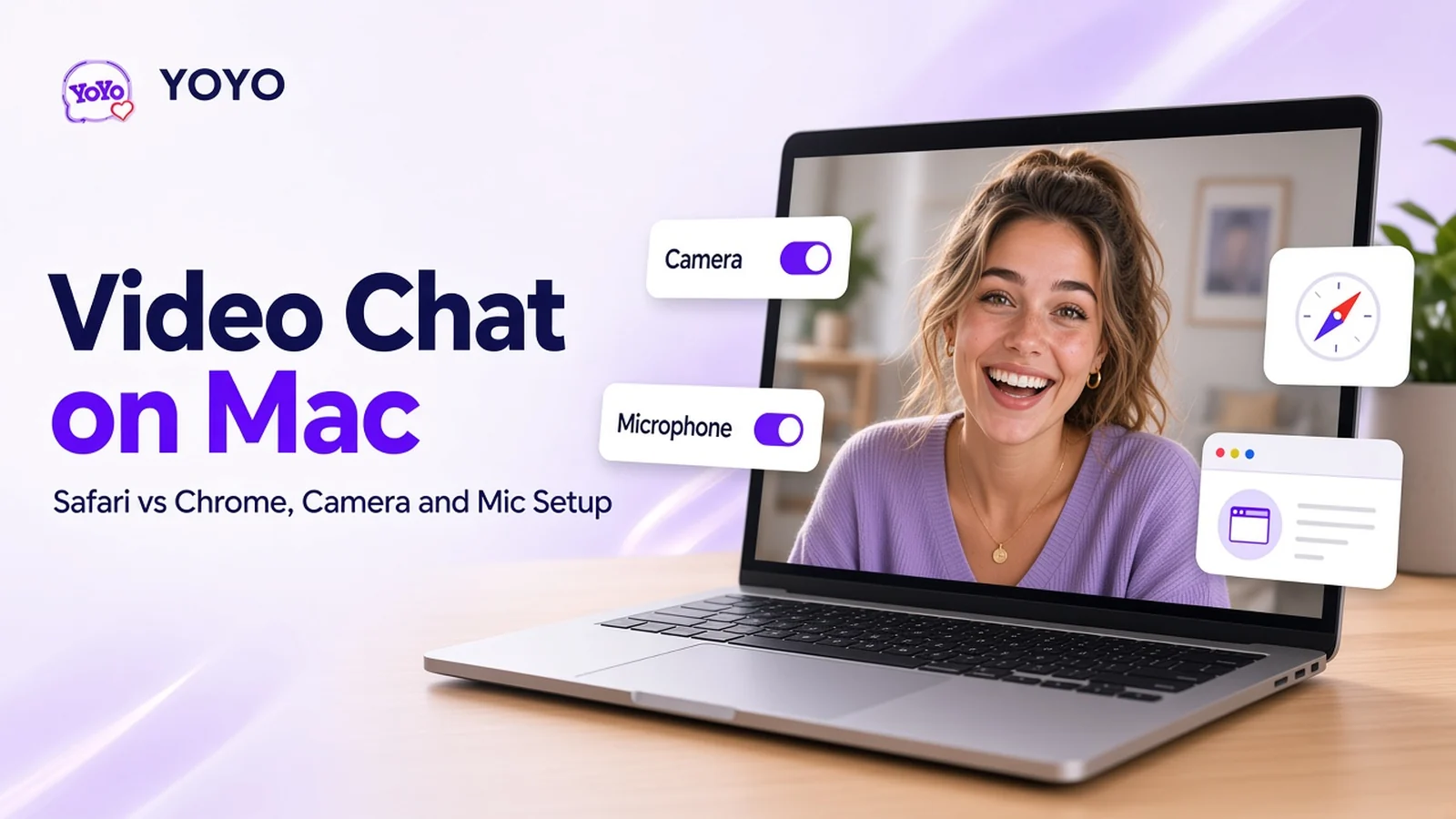
A Mac can be a comfortable place to have a video conversation. The screen is bigger than a phone, the keyboard makes it easier to type, and you can use a headset without holding the device in your hand. But when a video-chat site opens to a black camera preview, the advantages quickly disappear.
You usually do not need a separate app to use a browser-based video chat service on a Mac. A supported browser, a working camera and microphone, an appropriate account if required, and a stable connection are the main ingredients. Start with the browser you normally use, then change one setting at a time if something doesn't work.
Safari or Chrome: which should you use?
| What matters | Safari | Chrome |
|---|---|---|
| Availability | Built into macOS | Separate browser installation |
| Site permissions | Manage camera and microphone under website settings | Manage device permissions under site settings |
| External devices | Depends on site and system support | Browser settings include default camera and microphone choices |
| Useful first choice | A site that officially supports Safari | A site that recommends Chrome or works better in it |
| Best fallback | Try Chrome if the same site fails in Safari | Try Safari if an extension or browser setting causes problems |
There is no universal winner for every social video chat site. A service's compatibility requirements, your macOS version and your network matter more than the name of your browser. Don't install a new browser until you have checked the obvious permissions.
Set up your Mac before opening a call
Put your laptop on a stable surface, position a lamp in front of you rather than behind you, and choose an ordinary background that does not reveal private information. A built-in webcam is enough to start. If you use a USB camera or Bluetooth headset, connect it before opening the chat site.
Open the official website of your chosen service. Read its access and age requirements, complete any necessary sign-in, and wait for the camera and microphone prompt. Make sure the domain is the one you intended to visit. You should never need an unknown browser extension simply to grant your webcam permission.
For a broader comparison of desktop access, see video chat on PC. The specific instructions below focus on macOS.
Allow the camera and microphone in Safari
Apple documents website-specific permissions in Safari. Open Safari's Settings, choose Websites, and select Camera or Microphone. Find the site you are using, then choose the appropriate permission. Ask is a sensible default for sites you do not use regularly; Allow may be convenient for a trusted site if you understand the access being granted.
You may also need to check macOS System Settings under Privacy & Security. If the browser is not allowed to access the camera or microphone at the operating-system level, a website-level Allow setting will not solve the problem. Restart the browser if your system asks you to do so, then return to the official website and try the preview again.
When you finish, close the call and review the permission if you would rather be asked again next time. A functioning call does not require leaving camera access permanently enabled for every website.
Fix camera and microphone permissions in Chrome
Chrome's desktop help documentation describes camera and microphone settings under Privacy and security, Site settings, and the relevant device permission. If you previously denied access, find the site in the blocked list and change its permission when appropriate. You can also check which device Chrome selects by default.
That last step matters if your Mac has more than one microphone. A headset can be connected successfully while the browser still uses the built-in input. Test the input level and speak a short sentence. If your own preview looks normal but the other person cannot hear you, check both the site's mute control and the system input settings.
Close unnecessary tabs or apps that may be using the camera. If the browser requests an operating-system permission, check it rather than repeatedly clicking the website's Start button. The official Chrome help page is a useful reference for the current settings path.
Diagnose the symptom, not just the browser
Black preview: Open a trusted camera application to see if the device itself works. If it does, return to the browser and inspect the site's camera permission. If it does not, test the connection or system settings before changing websites.
Preview works but the chat never connects: Check the account prompts, browser compatibility and network. A local preview is not evidence that a remote session is established.
Sound is faint or missing: Make sure the correct input and output are selected. Disconnect an unused headset and try a short test with the built-in microphone. Keep the speaker volume moderate to reduce echo.
Video freezes after a few seconds: Pause large downloads and try a stable connection. If your service offers a quality setting, select a lower resolution temporarily. Don't assume a camera permission is responsible for every network interruption.
For more general troubleshooting, read video chat camera and microphone not working.
Frequently asked questions
Can I video chat on a Mac without downloading an app?
Yes, if the service offers a supported browser version. Some services still require an account, eligibility checks or other setup.
Why does Safari say the camera is blocked?
The website or macOS permission may have been denied. Check the current Safari website settings and the system privacy settings separately.
Can I use AirPods for online video chat?
A compatible headset can work, but confirm that the browser and system have selected the intended microphone and output. If audio becomes unreliable, compare with the built-in devices.
Do I need to disable security settings to make a call?
No. Grant the necessary permissions to a trusted site, use supported software and diagnose specific failures. Avoid weakening system-wide protections.
Make the next conversation comfortable
Once the preview and audio are working, spend your energy on the conversation rather than the setup. Start with the official YOYO website to see the current Web experience, and keep the browser that works reliably on your Mac.