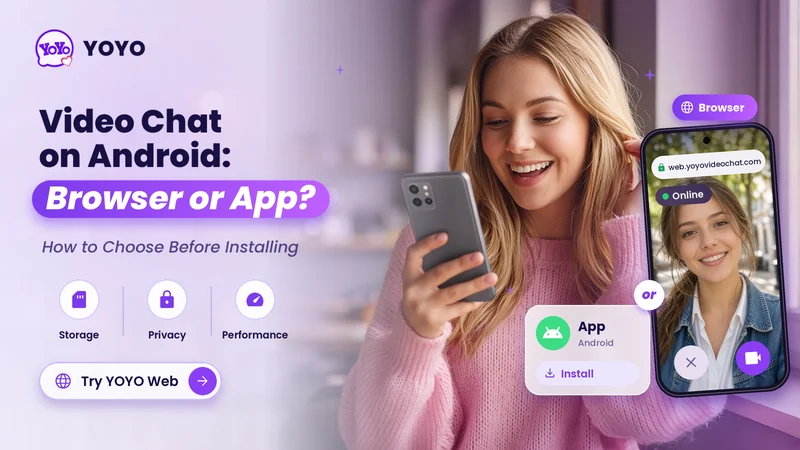
Your phone already has a camera, microphone and browser. For many web-based video services, that's enough to start a call without installing another app. But 'works on Android' and 'works in an Android browser' are different promises. Some features are available only in an app; others work perfectly well on Chrome or another current browser.
This guide helps you check the difference, fix the most common problems and avoid accidentally giving a website more access than it needs.
Before you begin: a 30-second checklist
- Use an up-to-date browser such as Chrome on a supported Android version.
- Connect to reliable Wi-Fi or mobile data. Video uses more data than text or voice.
- Confirm the site is the provider's official HTTPS address.
- Make sure no other application is actively using the camera or microphone.
- Find a reasonably well-lit, quiet place. A good conversation doesn't require studio equipment.
You generally do not need to install an Android app merely to grant the browser camera access. You do need to allow the browser and the particular website to use the camera and microphone.
Step 1: open a real web entry
Type or follow the official address instead of trusting a lookalike result. If you want to explore YOYO, begin at YOYO Web. Read the options shown on that page. The current Web experience may ask you to enter as a visitor, sign in or complete another step; don't assume an app-only button or feature is available on the website.
If the page directs you to a store, it may be an app-first flow. If it offers an on-site chat entry, continue in the browser. The important point is to follow what the actual page says, not a blog tutorial written for a different version.
Step 2: let Chrome use your camera and mic
When a legitimate video-chat site requests camera and microphone access, Android Chrome normally shows a permission prompt. Choose Allow only if you intended to start a video call. If you previously blocked the site, open Chrome's site settings, find Camera and Microphone permissions, and update the specific site's setting. Android system settings can also block camera or microphone access for Chrome as a whole.
If permission is granted but the page stays black, close other camera-using apps and reload once. Avoid installing unknown APK files advertised as a 'camera fix'.
Step 3: test sound before a stranger joins
Record a brief note using a trusted app or test your microphone in an ordinary call. If sound is quiet, check whether a Bluetooth headset is connected and whether the browser selected a different audio route. Headphones reduce echo; the phone's built-in microphone is often sufficient in a quiet room.
When the other person can't hear you, distinguish two problems: a microphone permission error and a muted microphone button inside the chat interface. Both can make you appear silent, but they require different fixes.
Step 4: improve unstable video
A frozen face isn't always a broken camera. Switch between Wi-Fi and mobile data if one network is clearly unstable. Move closer to your router, stop large downloads and close background video streams. Battery-saving modes may reduce background activity; keeping your chat tab in the foreground can help.
If the video is grainy, face a window or lamp instead of sitting with bright light behind you. Clean the lens. Do not assume an HD label guarantees HD: image quality depends on device, connection and the service itself.
Step 5: check the cost and account rules
'No app needed' doesn't mean 'no account needed' or 'unlimited free minutes'. A browser-based service may offer free browsing and paid calls, trial time, subscriptions or coins. Look for the current on-screen terms before continuing. If the page doesn't clearly explain what a charge buys, don't proceed with payment.
You should also check the service's age requirement, privacy policy and available controls for ending or reporting a chat.
Troubleshooting by symptom
| What you see | First thing to try | Next step |
|---|---|---|
| Black camera preview | Refresh after allowing Camera | Check Chrome and Android system permission |
| Mic symbol on but no sound | Check in-chat mute | Disconnect/reconnect Bluetooth headset |
| Permission prompt never appears | Review site settings | Verify you're on HTTPS and not in a restricted embedded browser |
| Call connects then freezes | Try a more stable network | Close downloads and retry |
| Page keeps opening the Play Store | Check whether it has a real Web mode | Don't assume app-only features work in browser |
| Strange login or payment screen | Verify official domain | Stop before entering passwords or card details |
Privacy matters more on a phone
A phone camera can reveal your home, workplace, house number or other people nearby. Pick a neutral background and avoid showing notifications. Never display personal documents, private messages, one-time passwords or payment information during a chat. Use the service's block and report tools when necessary. If the person pressures you to move to an unknown website, end the conversation.
Frequently asked questions
Can Android Chrome make video calls without an app?
Yes, on websites that support browser-based video chat and have permission to use the camera and microphone. Individual services may still require accounts or mobile apps for certain features.
Why does my camera work in the Camera app but not in Chrome?
Android system permissions, Chrome site permissions or another app holding the camera can cause the difference. Check all three before assuming the phone is faulty.
Is browser video chat always free?
No. Browser access is a technical capability, not a pricing guarantee. Read the service's live terms.
Should I use a VPN if a site will not load?
First check the address, network and local service availability. A VPN may change routing but does not remove a service's rules, and it can create latency or access problems.
Start with a simple conversation
If you'd like to explore social video chat on your Android phone, open YOYO Web in your browser and review the options currently presented. For further help, see camera and microphone troubleshooting and the YOYO Web introduction.