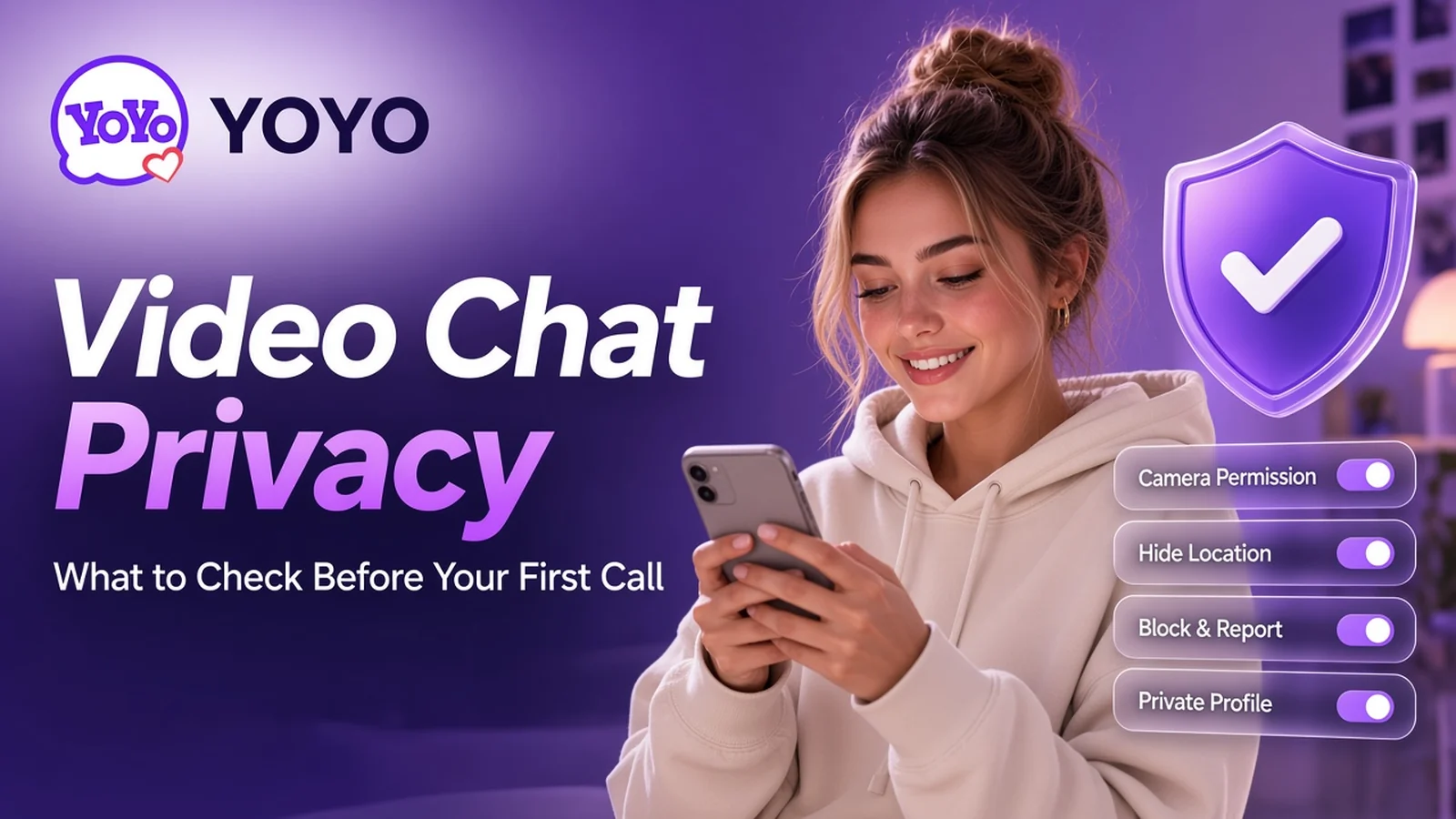
A video call can feel informal. You click a link, allow a camera prompt and start talking. But even a short conversation can reveal more than you intended: a letter with your address in the background, the name on a work badge, a notification on a shared screen or a payment request that arrives after someone has gained your trust.
Privacy on video chat is not about avoiding human connection. It is about choosing what you share, with whom and for how long. A few small checks before the first call make it easier to relax and focus on the conversation itself.
Quick answer: Verify the site's address, review browser camera and microphone permissions, tidy the camera frame, hide sensitive notifications and learn how to leave or report a call. Do not assume an app can prevent another person from recording the screen. Keep financial and identifying details private, and do not send money to someone you know only through online chat.
The ten-point checklist before you turn on your camera
| Check | What to do | Why it matters |
|---|---|---|
| 1. Website | Open the service from a trusted official address | Reduces phishing and lookalike-site risk |
| 2. Camera permission | Allow the specific site only when needed | Avoids broad, unnecessary access |
| 3. Microphone permission | Confirm the intended input device | Prevents unexpected audio capture |
| 4. Background | Remove documents, badges and location clues | Limits accidental personal disclosure |
| 5. Screen sharing | Close private tabs and turn off alerts | Prevents unintended screen exposure |
| 6. Profile | Review visible name, photos and bio | Controls what a stranger knows immediately |
| 7. Identity claims | Treat unverified stories cautiously | A profile or face is not proof of every claim |
| 8. Exit/report | Find the leave, block and report tools | Gives you control if a call becomes uncomfortable |
| 9. Payments | Check any purchase in the official flow | Avoids surprise charges or external payment scams |
| 10. Recording | Assume screenshots may be possible | Helps you choose what to show or say |
These steps are useful even on services with moderation. Policies and safety tools can reduce risk but do not erase the possibility of an unpleasant interaction.
1. Make sure the link really belongs to the platform
A convincing logo is not enough. Check the complete domain in your browser's address bar before entering account credentials or allowing camera access. Be particularly careful with links sent in unsolicited private messages, shortened URLs and pages that ask you to install an unknown extension “to enable video.”
For YOYO, start from its official website and follow the current product entry there. Do not assume a third-party directory, cloned landing page or social profile is an official login. If a page looks unfamiliar or asks for information you didn't expect, leave and navigate independently from the brand's known address.
A secure HTTPS connection protects traffic between the browser and the site in transit; it does not prove that the people you meet are trustworthy or that every part of a service is end-to-end encrypted.
2. Treat camera and microphone permissions as separate decisions
Your browser normally asks to access devices before a video call. Approving the microphone is not the same as approving the camera, and neither permission should be granted simply because a page insists that it is “necessary for verification.” Make sure you understand what kind of interaction you are trying to start.
In Chrome, open Settings → Privacy and security → Site settings to review camera and microphone permissions. You can change the selection for a particular site. On a Chromebook, system-wide camera and microphone privacy controls can also prevent browser access even after a site is allowed.
If you are uncomfortable with video, choose a product that actually supports text or audio-only interaction rather than assuming every video platform has a camera-off mode. Permissions should reflect your real choice.
3. Check what your background reveals
A blank wall or a harmless bookshelf is often enough. You do not need a staged set. The objective is to remove information that could identify your address, workplace, schedule or family members without your intending to share it.
Look for shipping labels, certificates with full names, visible calendars, house numbers through windows and devices displaying incoming notifications. Photographs of friends or family can also reveal identities you did not intend to show. If the room is shared, ask others before placing them on camera.
Virtual backgrounds may help, but they can glitch or briefly reveal the real background. Treat them as convenience features rather than perfect privacy barriers.
4. Understand what a profile or verification feature can—and cannot—prove
A platform may ask for a photo, sign-in or identity-related information. That can influence its moderation process, but you should not equate an account badge or a live video image with proof of a person's name, employment, intentions or every story they tell.
YOYO's iPhone update history describes account verification and friend-based communication rules. The Web flow must be checked separately, and no article should imply that every user is guaranteed to be authentic or safe. A genuine person can still make a misleading claim or behave inappropriately. Build trust from consistent, respectful behavior over time rather than from one visual cue.
5. Know how to leave before you need to
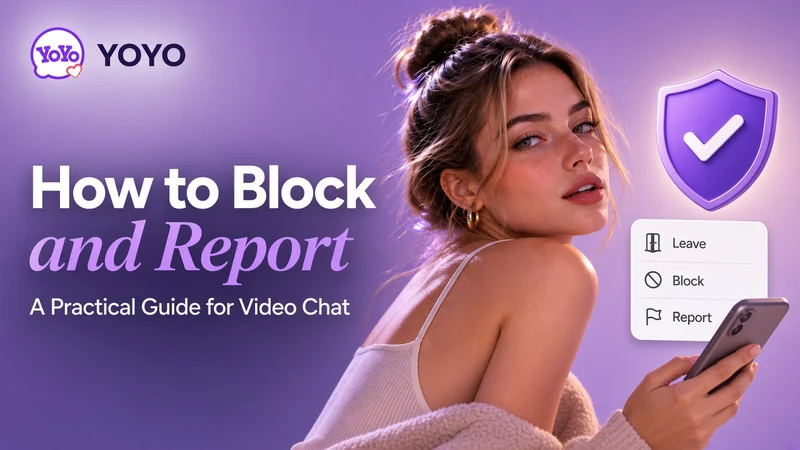
The first five minutes should not be the moment you discover that you cannot find an exit. Before joining, identify the leave-call button and whatever reporting or blocking tools the current product offers. Feature placement differs by service and device.
You are allowed to end a conversation when someone pressures you, ignores a boundary or makes you uncomfortable. You do not owe a detailed explanation. If the service supports a report, use it with truthful, relevant details rather than escalating the conversation. If someone makes threats, consider preserving the information you can safely retain and seeking appropriate support from the platform or authorities.
A respectful chat should make it possible for both people to say no.
6. Remember that the other person controls their device
A service that lacks a recording button cannot prevent someone from pointing another camera at their screen. Screen captures, external recorders and photographs are possible in many online environments. That is why it is wise to avoid displaying identification documents, financial statements or intimate content you would not want saved or redistributed.
You can ask whether recording is happening, but an answer is not a technical guarantee. The most reliable privacy decision is what you choose not to reveal. Likewise, avoid recording another person's image or voice without consent and without following applicable laws and platform rules.
7. Keep money outside a new online friendship
The Federal Trade Commission has described scams in which a supposed online friend builds trust and later asks for funds, gift cards, wire transfers or cryptocurrency. A request framed as an emergency can feel especially urgent after several emotionally engaging calls.
Pause if someone you have never met asks for money, pressures you to use a particular payment method or insists you keep the request secret. Do not rely on a video call as proof that the story is true. Talk to someone you trust, verify the claim independently and report suspicious accounts through the platform. The FTC advises against sending money to online contacts you have not met in person.
Also separate legitimate in-app purchases from direct payments to another person. If a service offers coins or subscriptions, use its verified purchase interface, understand what you are buying and check for renewal terms. Do not send payment to a private account because someone claims it is required to unlock your call.
8. Be selective when moving off-platform
An enjoyable conversation can make exchanging contact details seem natural. It can also reveal much more about you than you intended. A personal phone number, public social profile and email address may each connect to other accounts or public information.
Consider staying within the original service while you get to know the person. If you mutually decide to use another channel, check what profile details will become visible. You can choose a separate communication account and avoid linking it to your home address or workplace. This is a personal boundary, not an accusation against the other person.
For natural follow-up without pressure, see how to turn a first video chat into a friendship.
9. Watch for subtle information requests
Not every risky request sounds like “Send me your address.” Someone might repeatedly ask where you work, what hours you are home, what neighborhood you live in and which bank you use. Each answer can appear harmless in isolation. Combined, they can identify you or expose security information.
You can respond at a broader level: “I work in design” instead of naming your employer, or “I'm in the western part of the city” rather than naming your street. If someone becomes irritated because you will not answer, that reaction is itself useful information about the interaction.
Privacy and friendliness are compatible. You can talk openly about interests, opinions and stories without handing over identifying details.
10. Review the privacy settings after the call
When the call is over, close the tab or end the session in the product. If you granted a browser permission you no longer need, revoke it in Site settings. Check whether you remained signed in on a shared or school device, and clear any private notifications or open windows before giving the device to someone else.
If you used a managed device, some policies may be controlled by an administrator. Do not try to bypass them for a casual video call. Use a personally controlled device and permitted service if needed.
A short real-life privacy test
Imagine you are about to talk to someone you met through a music community. Your profile displays your first name and a photo. Your camera points toward a desk with a company badge, and you have an email client open with notifications enabled.
You can improve the situation in under two minutes: move the badge, pause notifications, check the URL, confirm the camera and microphone permissions, and learn where the report button is. The conversation can still feel spontaneous. You have simply removed the easiest accidental disclosures.
Frequently asked questions
Can someone record my video chat without a recording feature?
A person may use screenshots, external recording software or a second device. No visible record button means only that a specific button isn't displayed; it is not a privacy guarantee.
Is a video chat safe just because it uses HTTPS?
HTTPS helps protect network transport. It does not verify the motives of the person you meet, prove every product feature is end-to-end encrypted or stop someone from capturing their screen.
Should I share my phone number after a good first call?
Only if you want to and understand what it reveals. Staying on the original platform while building trust is a reasonable choice.
How do I control camera permissions in Chrome?
Use Chrome's Privacy and security → Site settings to review Camera and Microphone access for the specific site. On ChromeOS, device-level privacy controls may also apply.
What if someone asks me for money during a call?
Do not send money or sensitive payment information. Stop the interaction, verify claims independently and use the platform's reporting tools if the behavior appears fraudulent.
Good boundaries make better conversations
The best video chats feel easy because you are focused on the person and the story, not worried about what else you may be revealing. You can be curious, funny and open while keeping your personal data under your control.
When you're ready to explore a social video experience, start from the official YOYO website and confirm the current sign-in and privacy controls.